
How to record FaceTime with audio on Mac
If you've already tried the obvious way, you know the punchline: press ⌘⇧5, record the FaceTime window, hang up, play it back, and the call is silent. Or worse, you can faintly hear the other person as a tinny echo picked up by your microphone from the speakers.
That's not a bug in your setup. macOS never records call audio, on purpose: the built-in screen recorder can only listen to microphones, and FaceTime's sound (the other person's voice) is app output, which no stock recorder can hear. Recording FaceTime with audio means bridging that gap yourself. This guide shows how, with the quick consent note first.
First: get consent
Recording a call without the other person's knowledge is illegal in many places (several US states and other jurisdictions require all parties to consent), and FaceTime shows no recording notification to the other side. Ask on the call, get a yes on the recording, then start. It's also just the decent thing to do.
Why FaceTime recordings come out silent
The two recorders built into macOS, QuickTime Player and the ⌘⇧5 toolbar, record the screen plus one microphone. A FaceTime call has two audio streams: your voice (a microphone, fine) and the other person's voice (FaceTime's output, invisible to recorders). macOS deliberately prevents apps from listening to another app's output, so the built-in tools physically cannot capture the far side of the call. We cover the mechanics in our guide to recording internal audio on a Mac.
So every real solution routes FaceTime's output somewhere a recorder can see it. There are two good ways.
Option 1: OBS (free)
OBS Studio's macOS Screen Capture source (macOS 13+) records the screen together with system audio, which includes FaceTime's output. Add a microphone source for your own voice, hit record, and you have the call on video with both sides audible.
The catch is the same as ever with OBS: it's a full broadcast studio, so you'll set up scenes and sources before your first recording, and the result is a video file only. If you want just the audio of the call, or you'd rather keep using QuickTime, read on.
Option 2: SoundPipe + the recorder you already use ($10)
SoundPipe creates a virtual audio device that gathers the call's audio and shows up on your Mac as a microphone, so QuickTime and ⌘⇧5 can record it like any other input:
-
Download SoundPipe and open it. The driver installs with one admin prompt.
-
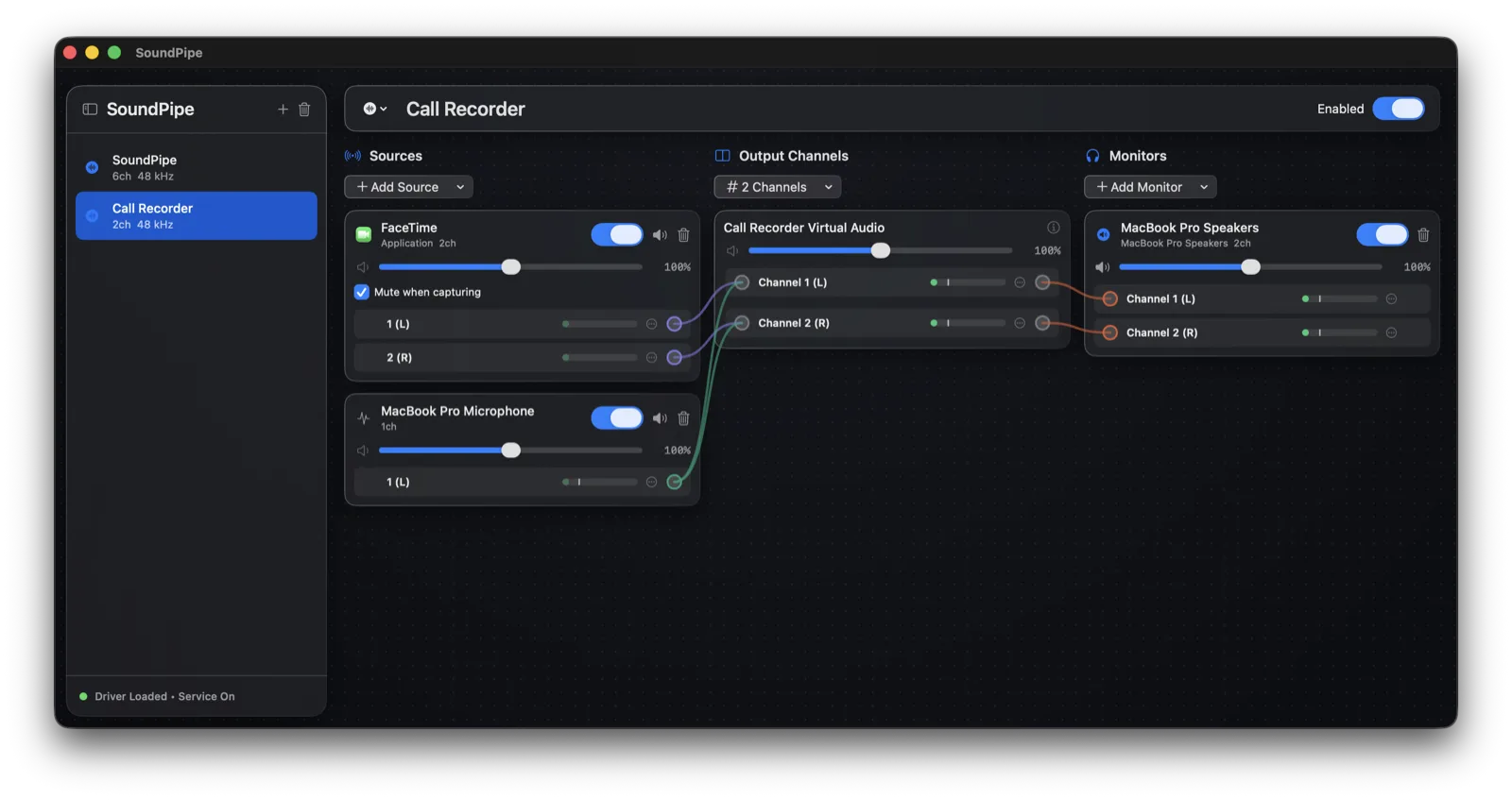
Create a device and name it, say, "Call Recorder".
-
Click Add Source and pick FaceTime under Running Applications (open FaceTime first so it appears). This captures only the call: a Slack ping or Spotify track during the call stays out of the recording. Picking System Audio works too if you'd rather grab everything the Mac plays.
-
Click Add Source again and pick your microphone. Now both sides of the conversation flow into the one device, each with its own volume slider, so you can balance your voice against theirs while watching the live meters.
-
Click Add Monitor and pick your headphones or speakers, so you still hear the other person while the call is being captured.
Then record with whichever tool fits:
-
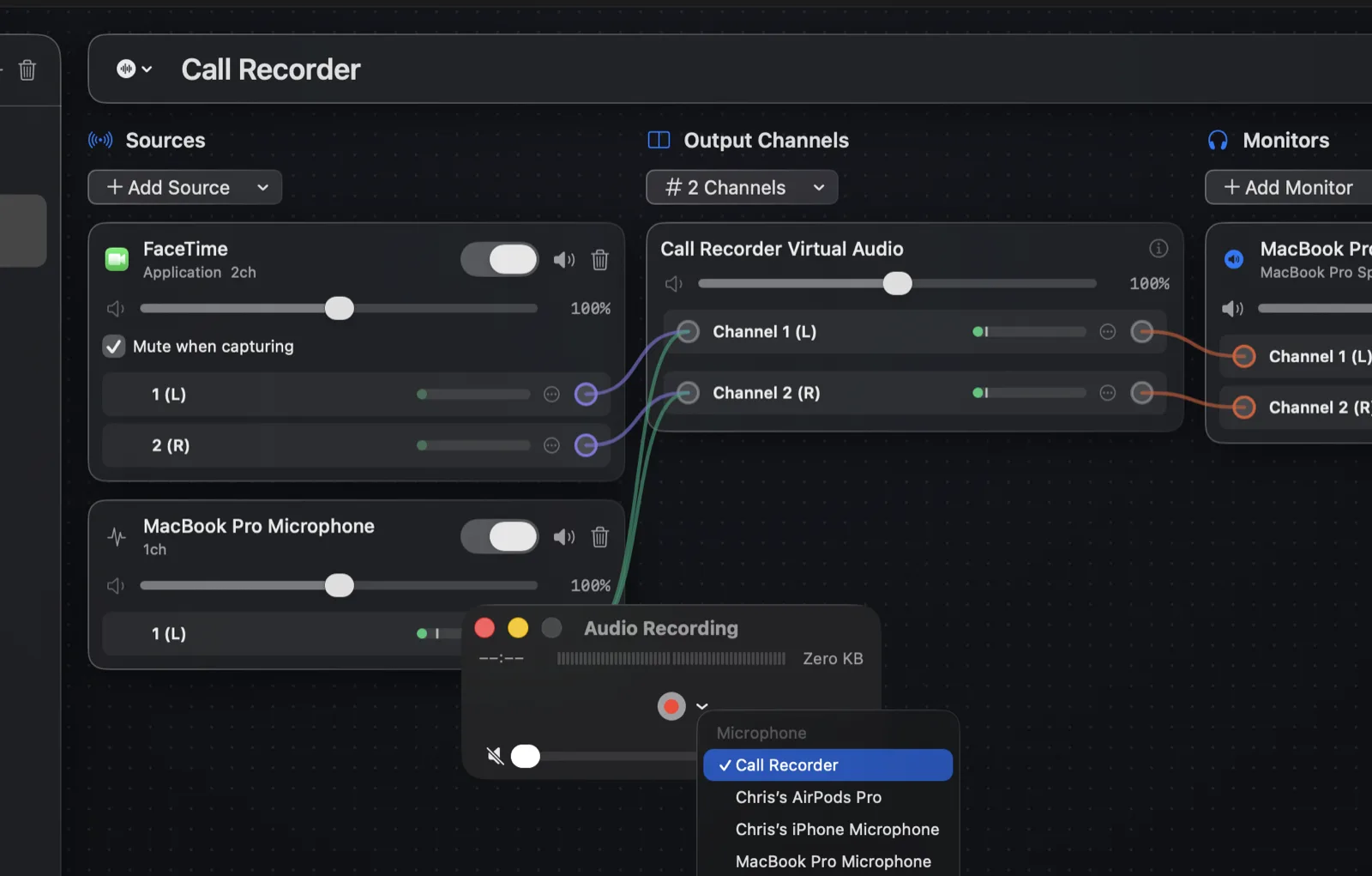
Audio only: open QuickTime Player → File → New Audio Recording, click the arrow next to the record button, and choose the "Call Recorder" device as the input.
-
Video + audio: press ⌘⇧5, click Options, and choose "Call Recorder" under Microphone, exactly as in our guide to screen recording on a Mac with audio.
Latency stays under 15 ms and sample rates are handled automatically, so nothing drifts out of sync over a long call. SoundPipe is $10 one-time for 3 Macs, and the trial is the full app in 20-minute sessions, long enough to record a real call before deciding.
What about recording FaceTime on an iPhone?
The iPhone's built-in screen recorder has the same limitation, more aggressively enforced: iOS mutes call audio in screen recordings entirely, and there's no virtual-device workaround on iOS. If you need a FaceTime call recorded with sound, take the call on a Mac. (If the other person is on an iPhone, nothing changes on your end; you're recording your Mac's copy of the call.)
Recap
- Get consent first. FaceTime won't tell the other person you're recording.
- The built-in recorders can't hear FaceTime, so plain screen recordings come out silent on the far side.
- OBS records screen plus system audio for free, video-file only.
- SoundPipe turns the call (and your mic) into a single device QuickTime or ⌘⇧5 can record, audio-only or with video, both sides balanced and in sync.