BlackHole audio on Mac: how to set it up and use it
BlackHole is a free, open-source virtual audio driver for macOS. It creates a device that shows up in both your output and input lists, and anything an app plays into it can be recorded by another app. It's the standard answer to "how do I record system audio on a Mac for free", and it earned that reputation honestly.
It is also just a pipe. BlackHole moves audio from one place to another and does nothing else: no interface, no volume control, no way to hear what's passing through it until you wire that up yourself. This guide covers the full setup, the parts most tutorials skip, and where a purpose-built tool saves the fiddling.
Is BlackHole audio safe?
Yes. BlackHole is open source (the code is on GitHub), signed and notarized by Apple, and it has been widely used for years. It contains no telemetry and phones home to nothing.
Two things worth knowing before you install:
- It's a system audio driver, so installation needs an admin password and briefly restarts your Mac's audio system (coreaudiod). Audio cuts out for a few seconds; that's normal.
- The download from the official site asks for your email address. If you'd rather skip that, install it with Homebrew (below), which fetches the same signed installer.
Install BlackHole
The quickest route is Homebrew:
brew install blackhole-2ch
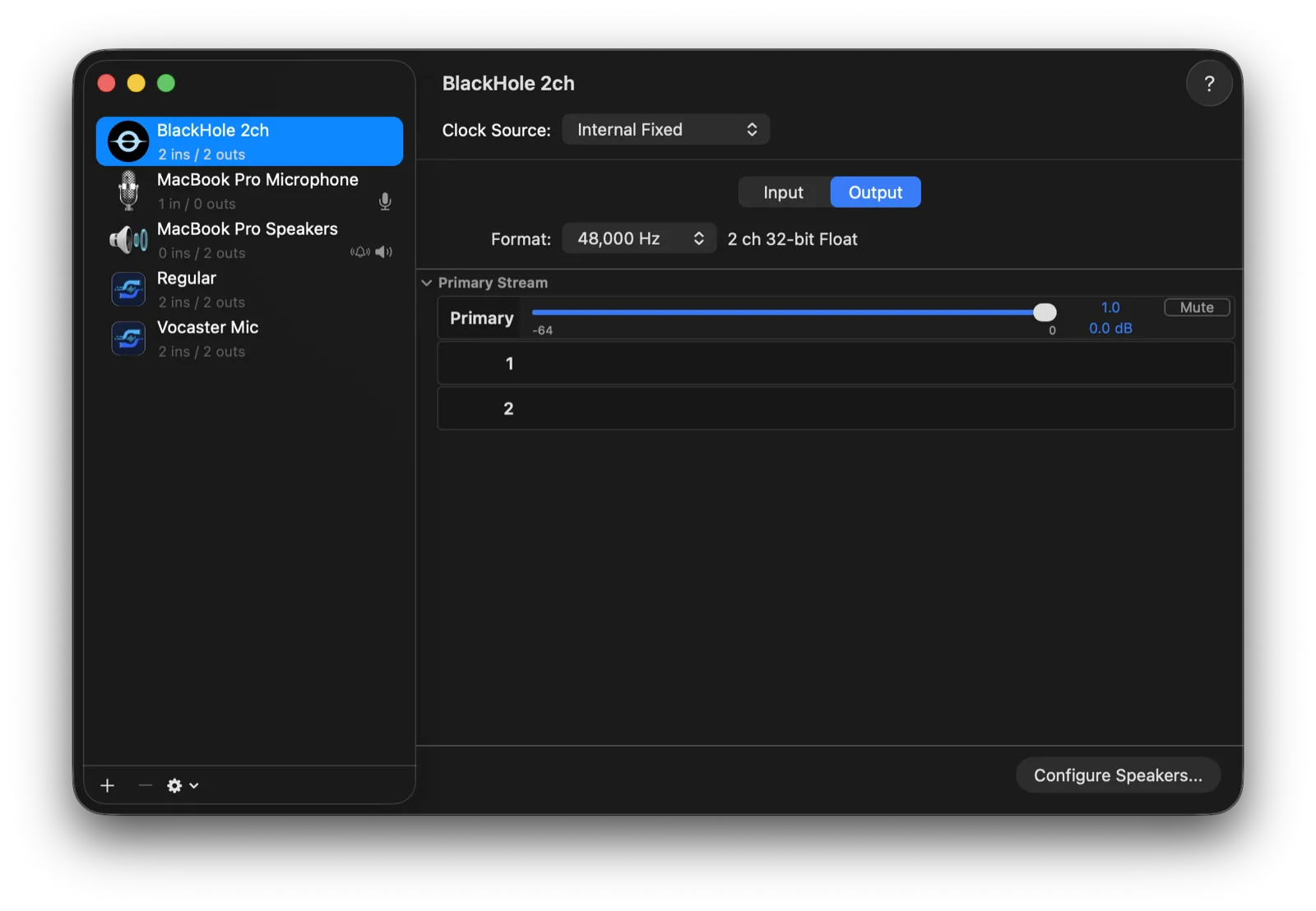
The 2ch variant (two channels, stereo) is what you want for recording system audio; the 16ch and 64ch builds exist for multichannel production work. If you don't use Homebrew, download the installer from existential.audio and run the pkg. Either way you'll type an admin password, your audio will blip for a few seconds, and a device called BlackHole 2ch appears in your sound devices:
Record system audio with BlackHole
The core trick has three steps:
- Open System Settings → Sound → Output and choose BlackHole 2ch. All your Mac's sound now flows into BlackHole instead of your speakers.
- In your recording app (QuickTime, Audacity, anything that records from a microphone), choose BlackHole 2ch as the input.
- Record. Whatever the Mac plays lands in the recording.
You'll notice the problem immediately: your speakers went silent in step 1. BlackHole is now receiving the audio, but nothing is sending it to your ears. For a quick one-off capture you can record blind, but for anything longer you want to hear what's happening, which needs one more piece.
Hear what you're recording: the Multi-Output Device
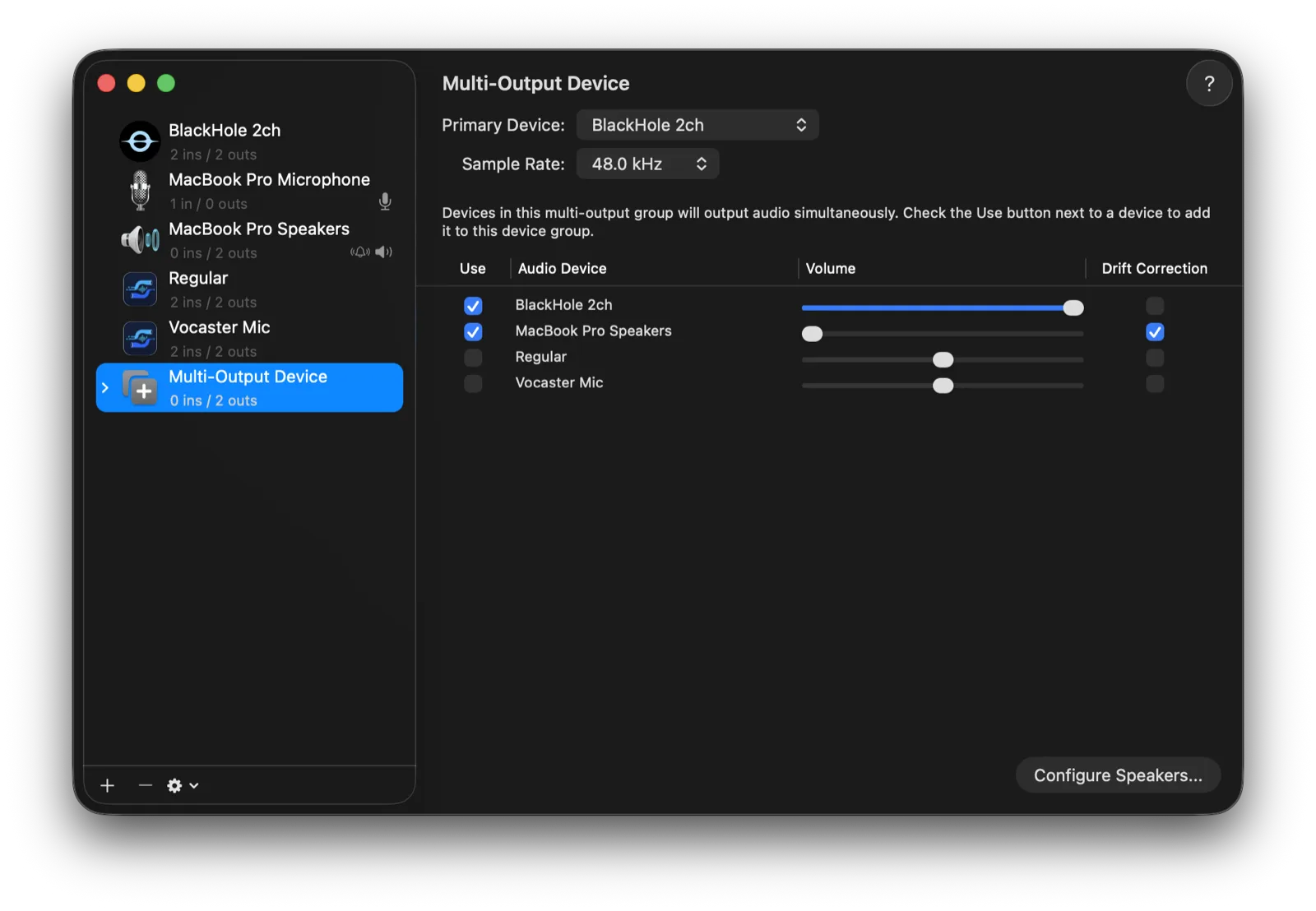
The fix is a Multi-Output Device, which duplicates audio to two places at once (your speakers and BlackHole):
-
Open Audio MIDI Setup (it's in Applications → Utilities).
-
Click the + at the bottom left and choose Create Multi-Output Device.
-
In the checklist, tick your speakers or headphones first, then BlackHole 2ch.
-
Set the Multi-Output Device as your output in System Settings → Sound.
-
Record from BlackHole 2ch as before. You hear everything through your speakers while BlackHole carries a copy to the recorder.
This works, and it's the setup most BlackHole tutorials stop at. The catches show up as you live with it:
- Your volume keys stop working. macOS can't control the volume of a Multi-Output Device, so the keyboard volume controls grey out. You adjust volume per-app or not at all.
- It's all or nothing. BlackHole carries the whole system mix: the video you're capturing, plus the Slack ping, plus everything else. There's no way to pick one app.
- No levels, no meters. You find out the recording was clipped or silent when you play it back.
- The wiring is manual. Sample rates must match between the devices (48 kHz everywhere is the safe choice), and it's easy to end up recording silence because some checkbox changed after a macOS update or a new pair of headphones.
Use BlackHole as a microphone in calls
The same pipe works in the other direction. Set BlackHole as the output for the audio you want to share, then pick BlackHole 2ch as the microphone in Zoom, Discord, or a browser. The far side hears whatever the Mac plays. The same all-or-nothing caveat applies, and mixing your real microphone on top requires an Aggregate Device, which is another round of Audio MIDI Setup.
Where BlackHole gets tedious, and the easier path
Everything above is free and it genuinely works. What you're paying instead is setup and babysitting: Audio MIDI Setup wiring, dead volume keys, no per-app capture, and no way to see or hear what's actually flowing until you play back the file.
SoundPipe ($10, one-time) is a virtual audio device with the routing built in, so the whole guide above collapses to:
- Download SoundPipe and open it. The driver installs with one click and one admin prompt.
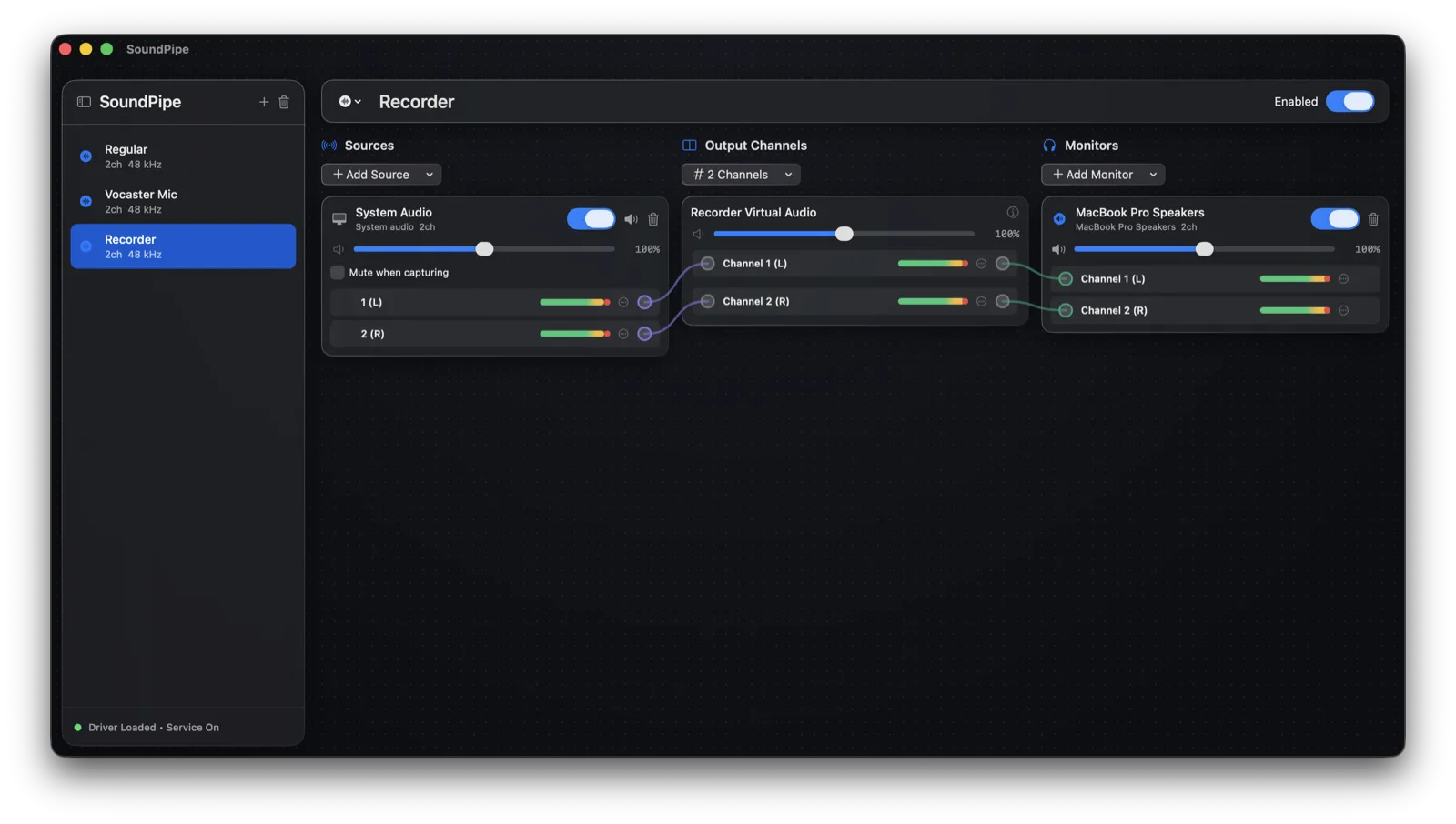
- Create a device, click Add Source, and pick System Audio, one specific app, or your microphone (or several of these, each with its own volume slider and live meters).
- Click Add Monitor and pick your speakers. You hear everything, your volume keys keep working, and there's no Multi-Output Device to maintain.
- Record from the SoundPipe device in QuickTime, Audacity, or anywhere else, exactly as you would from BlackHole.
The trial runs the complete app in 20-minute sessions, so you can set up a route and finish a real recording before paying anything. There's a fuller side-by-side on the SoundPipe vs BlackHole page.
Uninstall BlackHole
BlackHole has no uninstaller. If you installed with Homebrew:
brew uninstall blackhole-2ch
If you used the pkg installer, remove the driver and restart the audio system:
sudo rm -rf "/Library/Audio/Plug-Ins/HAL/BlackHole2ch.driver"
sudo killall -9 coreaudiod
Audio drops for a few seconds while coreaudiod comes back, and the device disappears from your sound lists. Delete any Multi-Output Devices you created in Audio MIDI Setup too; they stay behind otherwise.
Which should you pick?
| You want | Use |
|---|---|
| Occasional free capture, comfortable with Audio MIDI Setup | BlackHole + Multi-Output Device |
| Multichannel routing between pro audio apps, free | BlackHole 16ch/64ch |
| Per-app capture, live meters, working volume keys, no wiring | SoundPipe |
| Record screen and system audio together | See our screen recording guide |
| Audio-only capture, all the options compared | See recording internal audio on a Mac |
BlackHole is a good driver wearing no clothes: the audio plumbing is solid and free, and everything around it is your job. If you route audio once a year, take the free path above. If you do it every week, the setup you never think about again is worth $10.