QuickTime screen recording with audio
QuickTime Player is the screen recorder every Mac already has, and it costs nothing. The part that trips people up is audio: recordings come out silent, or they capture your voice but not the video you were playing. Both have simple explanations, and both are fixable.
Does QuickTime screen recording record audio?
Yes, but only from a microphone, and only if you ask it to:
- By default it records nothing. The Microphone option starts on None, so a fresh install of macOS produces silent screen recordings until you change it.
- With a microphone selected it records whatever the mic hears: your narration, and a tinny echo of anything coming out of your speakers.
- It cannot hear the Mac's own sound. The audio from the app, video, or call on your screen is called internal or system audio, and no QuickTime setting captures it. That needs a virtual audio device, covered below.
How to screen record in QuickTime with your voice
-
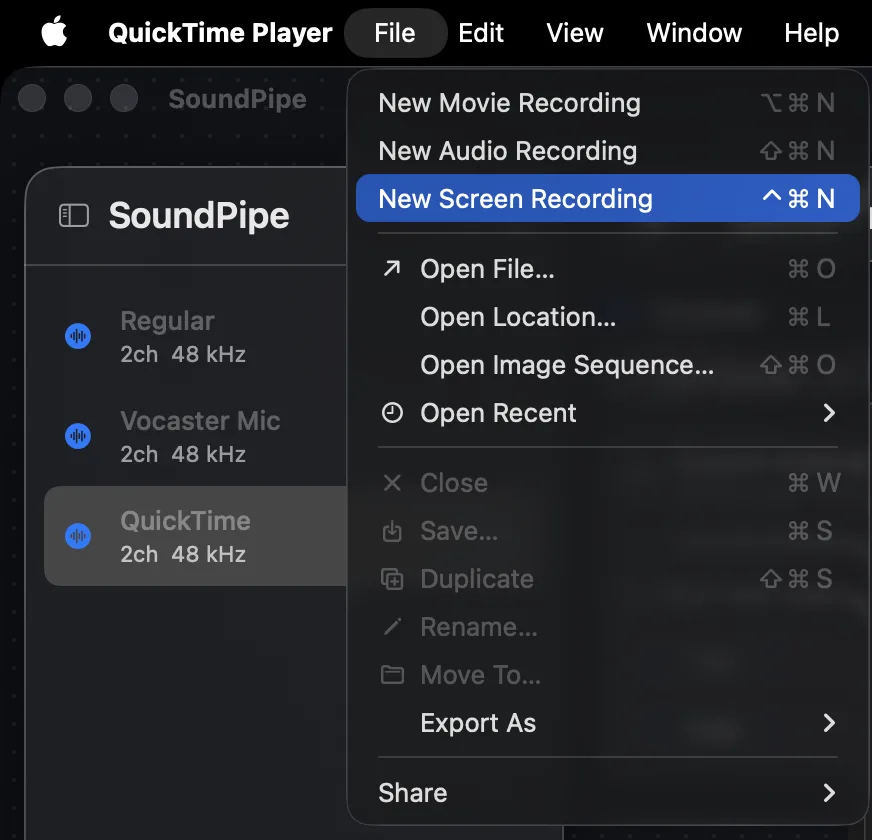
Open QuickTime Player and choose File → New Screen Recording.
-
On every modern version of macOS this opens Apple's recording toolbar, the same one you get by pressing ⌘⇧5. Pick Record Entire Screen or Record Selected Portion.
-
Click Options and choose your mic under Microphone.
-
Click Record. To stop, click the stop button in the menu bar or press ⌘⌃Esc. The recording opens in QuickTime, ready to trim (Edit → Trim) and save.
QuickTime screen recording has no audio? Check these
- Microphone is set to None. This is the usual culprit. Open Options in the recording toolbar and pick an actual input.
- You expected the video's own sound. A recording of a YouTube video or a call will not contain its audio, no matter which settings you change. macOS stops one app from listening to another's output. The next section is the fix.
- The mic level is near zero. Check System Settings → Sound → Input while speaking; if the meter barely moves, raise the input volume.
- The sound is there but thin and echoey. That's your mic picking up your speakers. It means everything is working; you're just recording the room instead of the source.
How to record the screen with system audio in QuickTime
QuickTime records from things that look like microphones, so the trick is a virtual audio device: a fake "microphone" that carries your Mac's sound. Free options exist. OBS Studio records screen and system audio together, but it replaces QuickTime entirely and brings a broadcast studio's learning curve (see our full screen recording guide for that route). The free BlackHole driver creates the virtual device but leaves you to wire it up in Audio MIDI Setup, with no volume control and no way to hear the audio while you record (our BlackHole comparison has the details).
SoundPipe ($10) does the whole job and keeps QuickTime as your recorder:
-
Download SoundPipe and open it. The driver installs with one click and a single admin prompt.
-
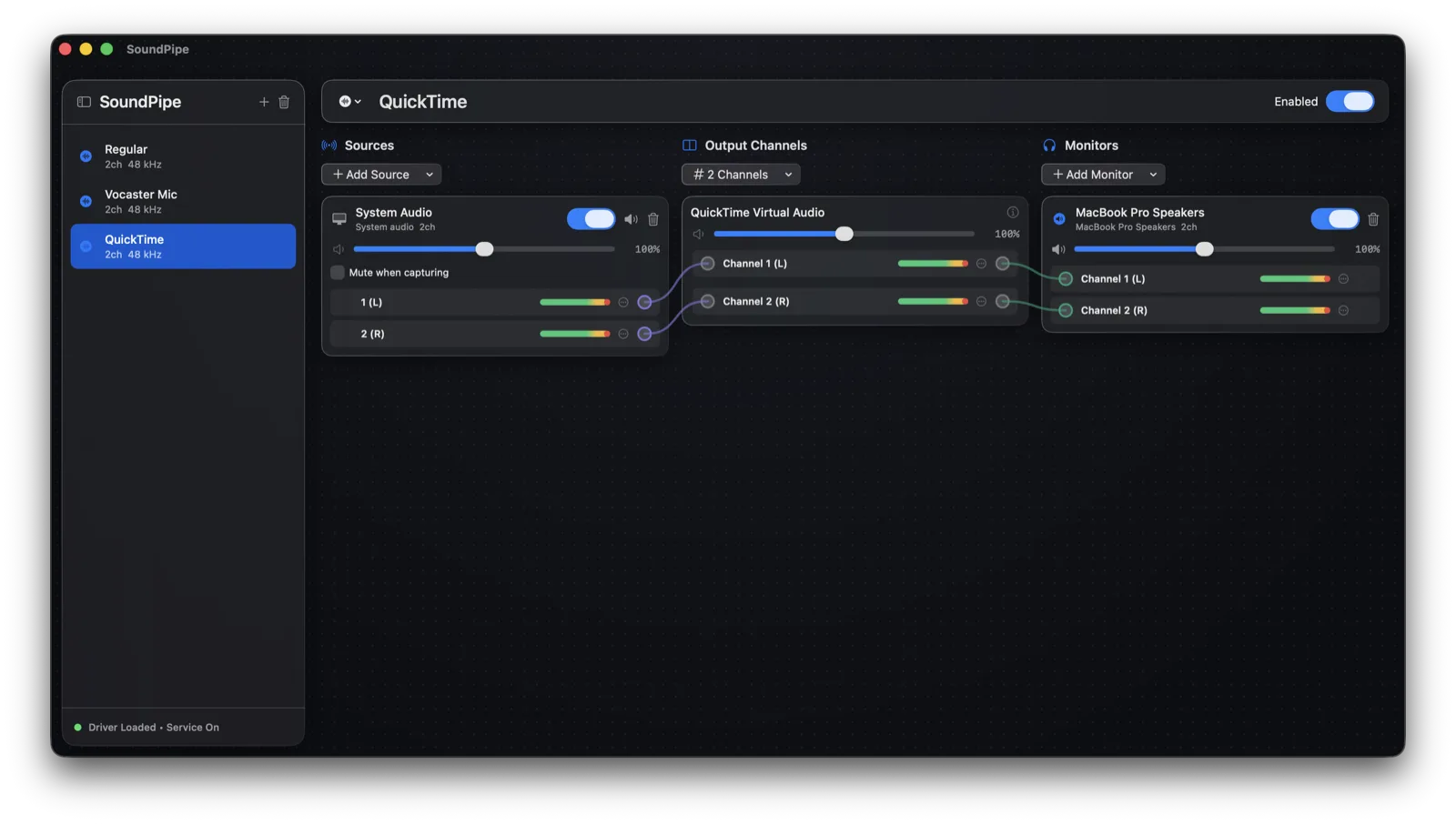
Create a device and name it, say, "QuickTime". Click Add Source and pick System Audio, or pick one app so a notification from somewhere else can't land in your take.
-
Click Add Monitor and choose your speakers or headphones, so you still hear everything while recording.
-
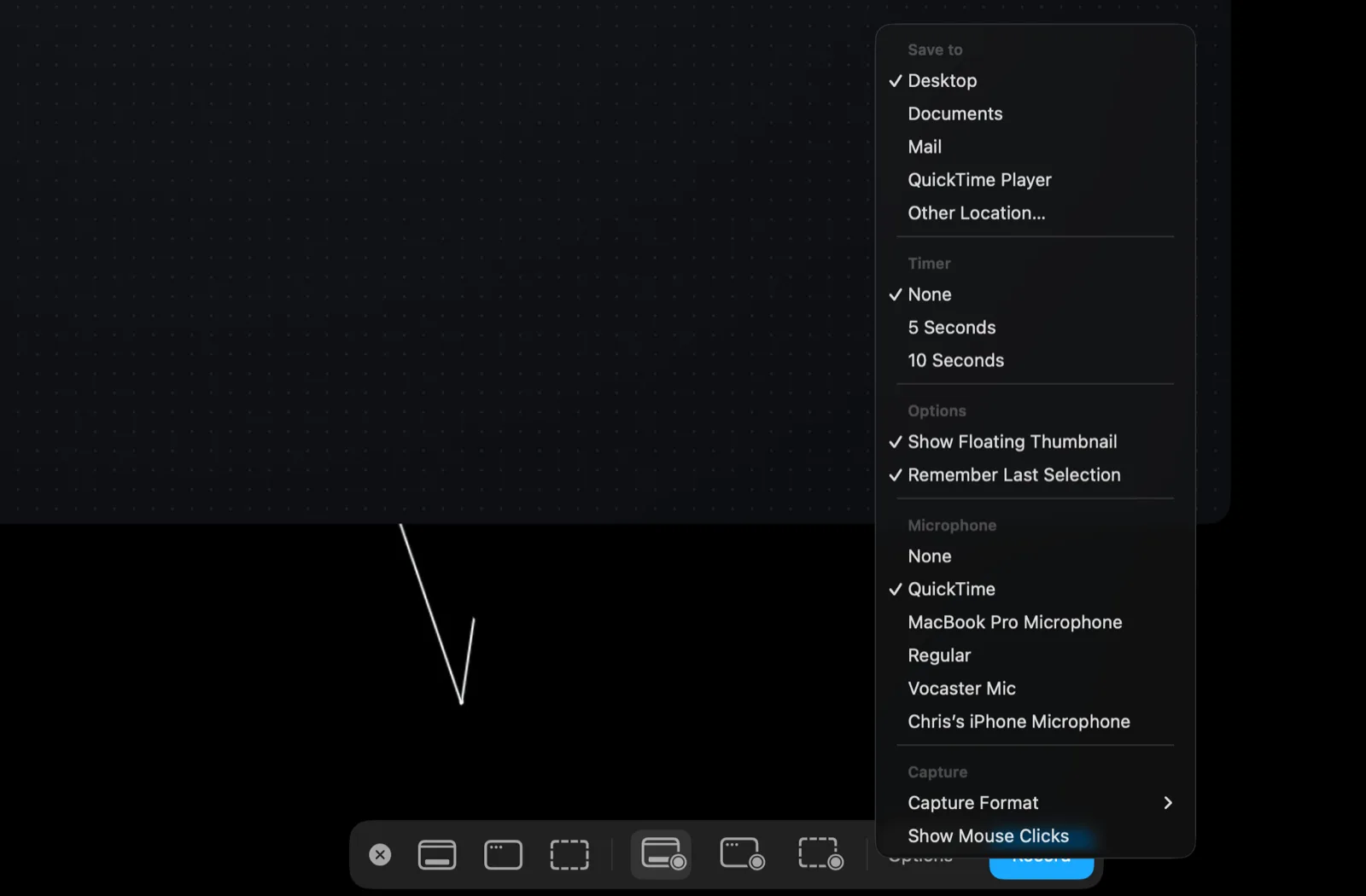
In QuickTime, choose File → New Screen Recording, click Options, and under Microphone pick the SoundPipe device.
-
Click Record. The recording now contains the Mac's sound, in sync, and you never left QuickTime.
To narrate over the top, click Add Source again on the same device and pick your microphone. Each source gets its own volume slider with live meters, so you can balance voice against app sound before you hit record. There's a longer walkthrough in the mix in a microphone guide.
The trial runs the complete app in 20-minute sessions, so you can finish a real recording before paying, and the one-time $10 license covers 3 Macs.
The same trick works for audio-only recordings
QuickTime's File → New Audio Recording has the same microphone picker, so the same virtual device turns it into a system audio recorder: pick the SoundPipe device, press record, and you get a clean audio file of whatever the Mac plays, no video attached. For more ways to do that, see how to record internal audio on a Mac.
Which should you pick?
| You want | Use |
|---|---|
| Screen + your voice only | QuickTime as-is, free |
| Screen + system audio, free, happy to switch apps | OBS |
| Screen + system audio inside QuickTime | SoundPipe + QuickTime |
| Voice + system audio together, premixed | SoundPipe + QuickTime |
| Audio only, no video | QuickTime's New Audio Recording + SoundPipe |
QuickTime was never broken. It just can't hear the Mac it runs on, and once a virtual device fixes that, the recorder you already have does everything the paid screen recorders advertise.