
Mix a microphone with app audio
Combine a hardware input with captured app or system audio in one virtual device — voice plus music, commentary plus game.
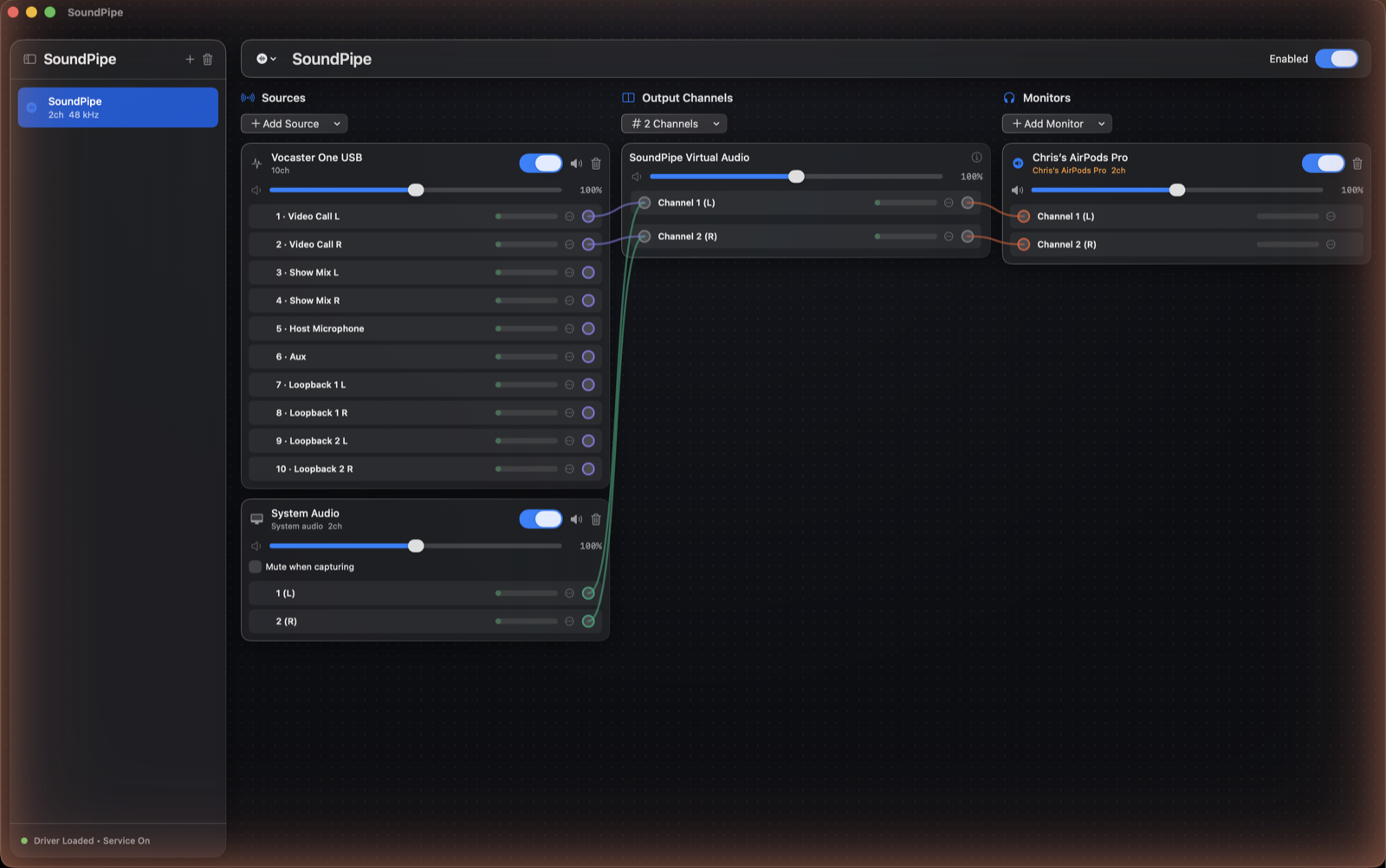
Because a device can have any number of sources, mixing your voice with other audio is just adding a second source: mic + music for a stream, commentary + game audio for a recording, voice + a soundboard for a call.
1. Add the microphone
On your device, click Add Source and pick your microphone or audio interface under Audio Devices. Any input macOS can see will work, at whatever sample rate it runs — SoundPipe converts automatically.
2. Add the other audio
Add a second source: an app under Running Applications, or System Audio. See Route audio from one app to another for the details.
3. Wire both to the same output channels
Drag both sources' channels onto output channels 1 and 2. Sources wired to the same channel are mixed together.
4. Balance the mix
Mute or unmute each source independently, and use the wires and channel volumes to set relative levels. The Device Volume scales the whole mix at once.
5. Use the device where it matters
Select the SoundPipe device as the input in your streaming, recording, or call app. It receives the finished mix as if it were a single microphone.