
Create your first virtual device
Make a virtual audio device, feed it a source, and use it in any app on your Mac.
A virtual device is the heart of every SoundPipe setup: sources feed audio into it, and any app on your Mac can listen to it like a microphone.
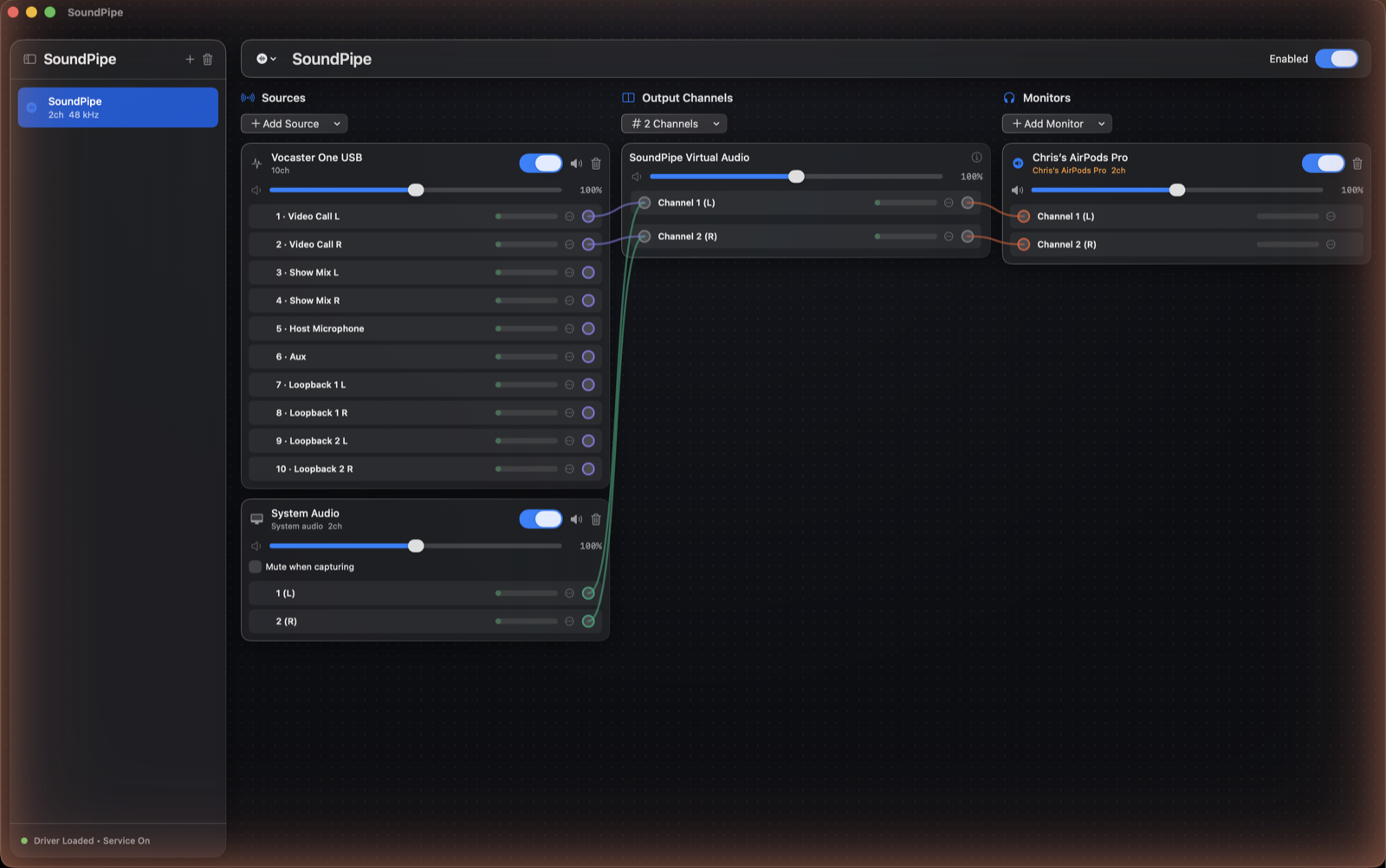
1. Create the device
Click + at the top of the sidebar to create a New Device. In the device settings, give it a name (this is the name every other app will see), pick an icon, and choose how many channels it should have. Two channels — a stereo pair — is right for almost everything.
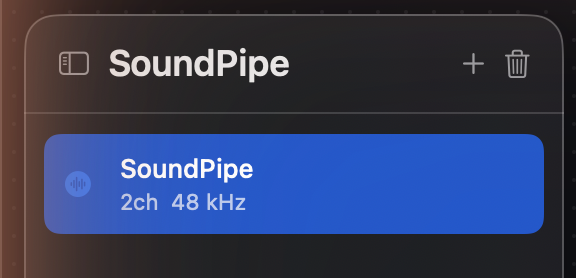
2. Add a source
In the Sources panel, click Add Source. Sources come in three kinds:
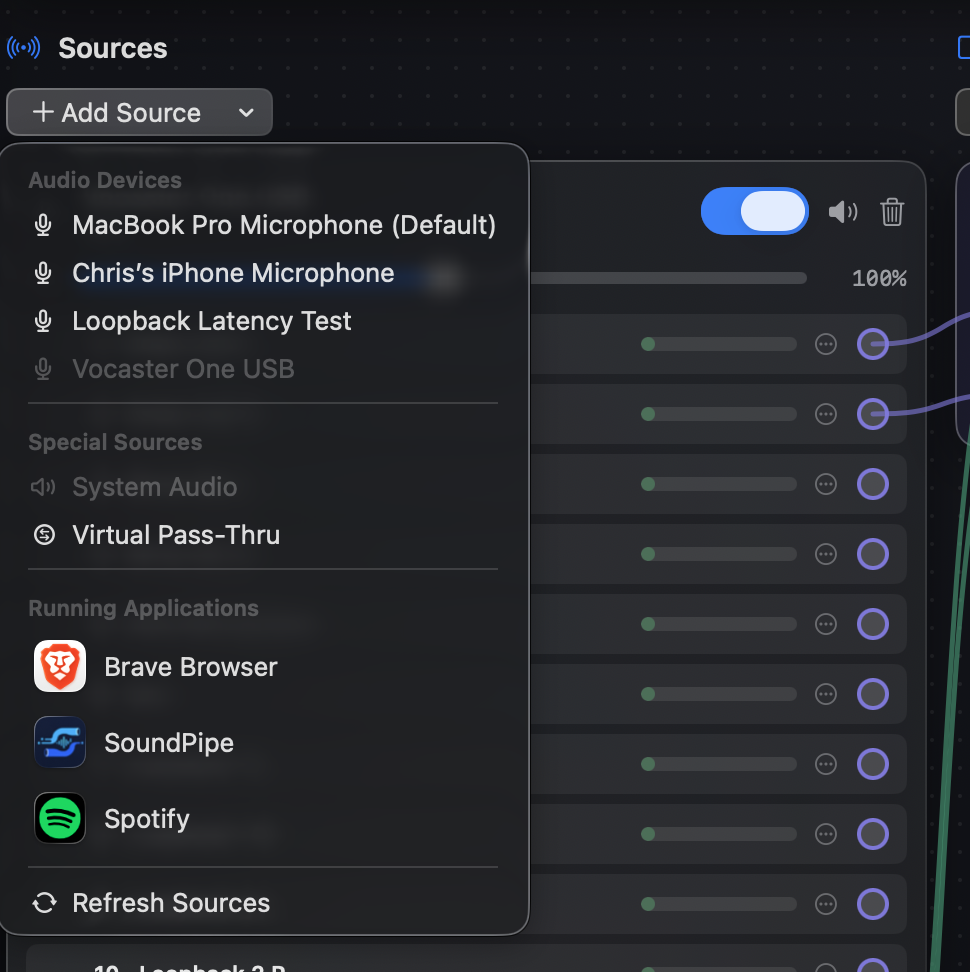
- Running Applications — capture the audio a specific app is playing.
- Audio Devices — a hardware input, like a microphone or audio interface.
- Special Sources — System Audio (everything your Mac plays) or another virtual device.
Pick one to start; you can mix as many sources into a device as you like.
3. Wire it up
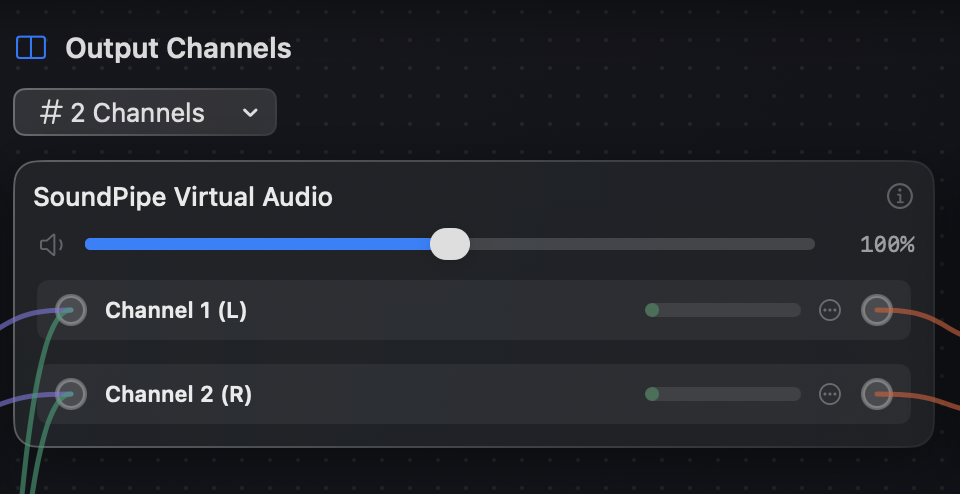
Each source's channels appear on the routing canvas. Drag from a source channel to one of the device's Output Channels to connect them. Channels 1 and 2 are the stereo pair most apps capture, so wire your source there unless you're doing something multichannel.
4. Use the device in another app
Open the app that should receive the audio — a recorder, a call, a DAW, a streaming tool — and select your device as its input. That's the whole loop: source → device → app.
Volume control
Every wire's level can be shaped at two places: each output channel has its own Channel Volume, and the Device Volume applies on top of every channel. Sources can also be muted individually — handy for silencing one input without touching the rest of the mix.