
Route audio from one app to another
Send the sound one app is playing into another app — music into a call, a browser into a recorder, anything into anything.
The classic use case: app A is playing something, and you want app B to hear it — music into a video call, a browser tab into a recorder, a game into a stream.
1. Capture the source app
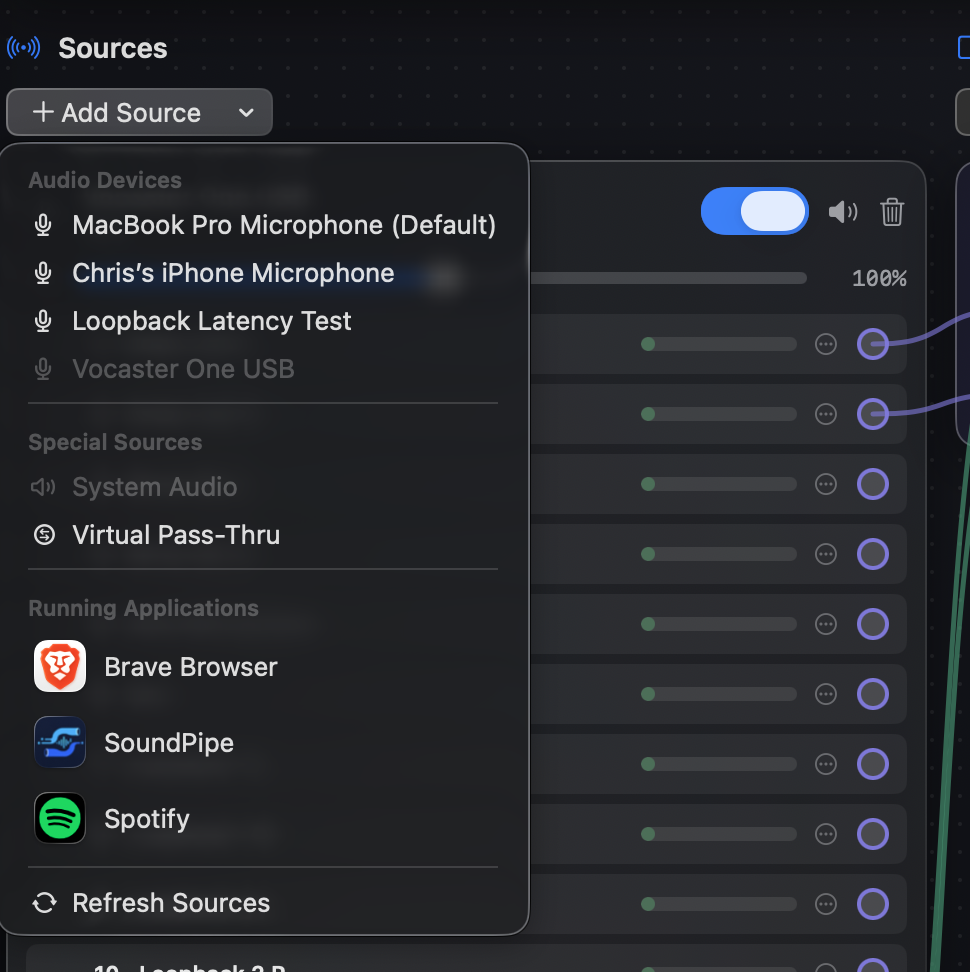
On your virtual device (create one first if you haven't — see Create your first virtual device), click Add Source and pick the app under Running Applications. The app must be running to appear in the list; use Refresh Sources if you launched it after opening the picker.
2. Decide whether you still want to hear it
By default the captured app keeps playing through your speakers as normal, and a copy flows into your device. Turn on Mute when capturing on the source if the destination app is the only place the audio should go — for example, when the person on your call would otherwise hear it twice.
3. Wire the source to the output channels
Drag the source's channels onto the device's output channels 1 and 2 on the routing canvas.
4. Select the device in the destination app
In app B, choose your SoundPipe device as the microphone or audio input. Call apps have this in their audio settings; recorders show it wherever they list input devices.
Tips
- Capture more than one app into the same device to mix them — each source gets its own mute and the wires set the levels.
- To hear the mix yourself while it routes, add a monitor: Hear what you're routing.