
Uninstall
Remove the app, the audio driver, and the background service completely with the built-in uninstaller.
SoundPipe installs two things beyond the app itself: an audio driver (inside macOS's audio system) and a per-user background service. Dragging the app to the Trash removes neither, so use the built-in uninstaller — it takes care of everything, including the app.
Run the uninstaller
Open the app's settings (⌘,) and click Uninstall SoundPipe… at the bottom.
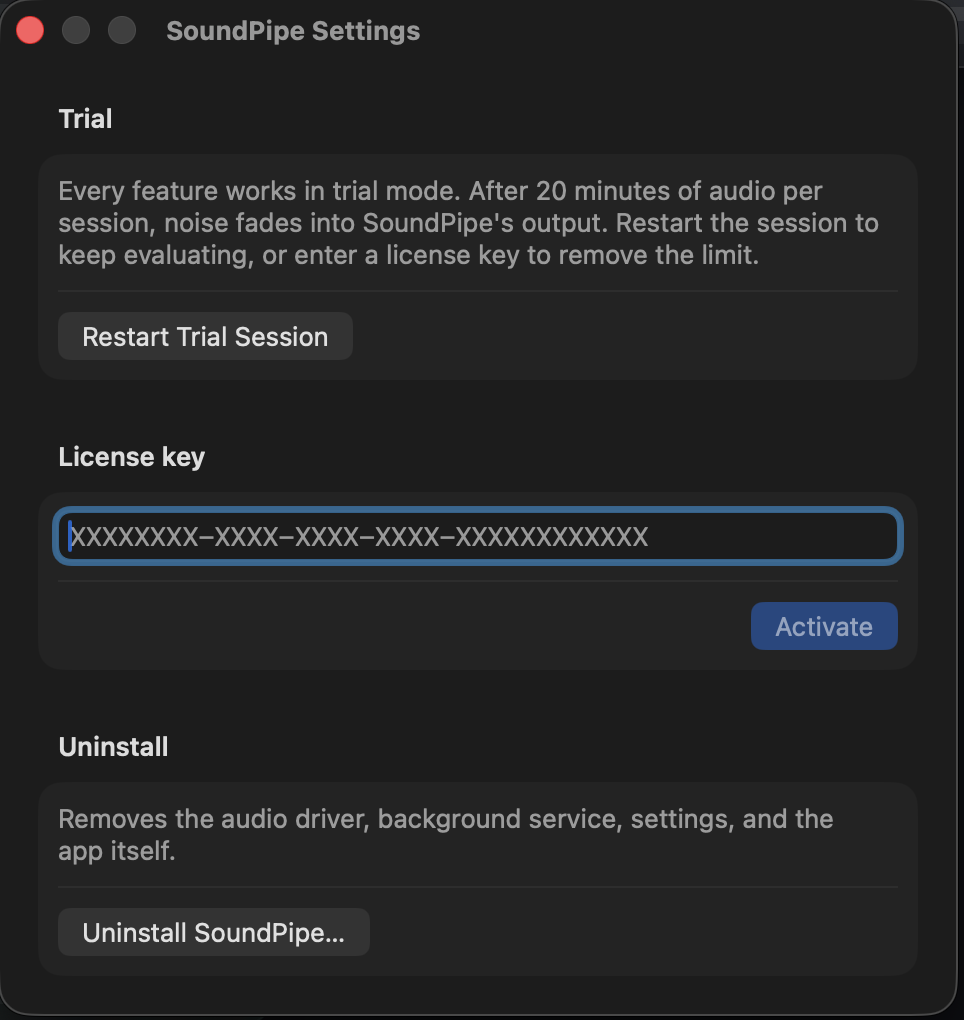
You'll be asked for your administrator password once, to remove the audio driver — cancelling that prompt aborts the uninstall with nothing changed. After that, the uninstaller stops and removes the background service, deletes SoundPipe's settings and logs, moves the app to the Trash, and quits. System audio may pause briefly while macOS reloads its audio system.
Nothing is left behind: no virtual devices in your sound settings, no background processes.
If you installed with Homebrew
Use the built-in uninstaller above anyway: it removes the audio driver, which Homebrew cannot. Afterwards, run brew uninstall --cask soundpipe/tap/soundpipe to clear Homebrew's record of the cask.
Reinstalling later
If you bought a license, the activation record is deliberately kept, so a later reinstall is licensed immediately without re-entering the key. Devices and settings are removed with the app, so you'll start with a fresh configuration.