
Capture system audio
Route everything your Mac is playing into a recorder, call, or any other app — without losing the ability to hear it.
Instead of capturing apps one by one, the System Audio source grabs everything your Mac plays — every app, every notification sound — and feeds it into your virtual device.
1. Add the System Audio source
On your device, click Add Source and choose System Audio under Special Sources.
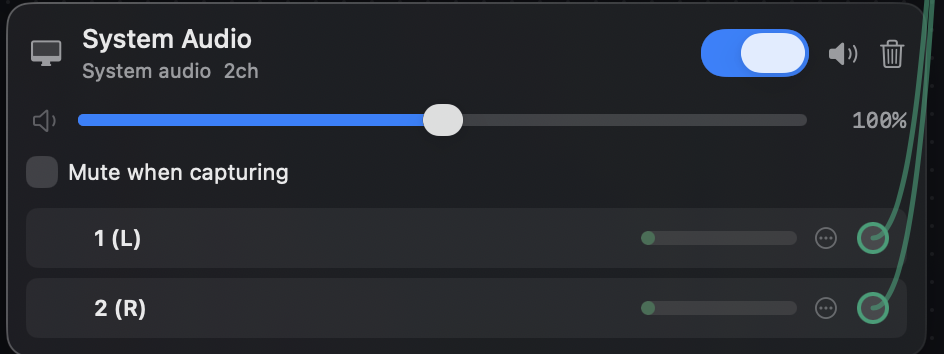
2. Wire it to the output channels
Drag the source's channels onto output channels 1 and 2 on the routing canvas.
3. Point the receiving app at the device
Select the SoundPipe device as the input in your recorder, call, or streaming tool. QuickTime, Audacity, OBS, and any DAW will list it like a microphone.
Keep hearing your Mac
Unlike the classic BlackHole-style setup, you don't have to change your Mac's output device or give up your speakers. System audio keeps playing exactly where it was; SoundPipe takes a copy. If you do want to listen to the device's mix instead (for example, to hear exactly what's being recorded), add a monitor — see Hear what you're routing.
Watch out for feedback loops
If the app receiving the device's audio also plays audio (a call app playing the other side's voice, say), that playback is part of "system audio" and will loop back into the device. For those cases, capture the specific apps you want instead: Route audio from one app to another.